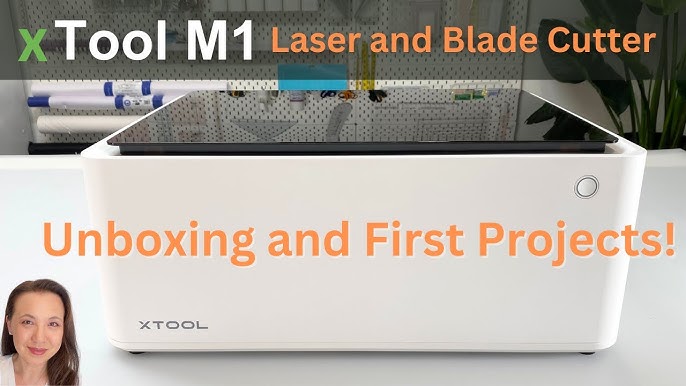
xTool M1 Laser Cutter: A Versatile Tool for Creative Projects
The xTool M1 combines laser engraving and cutting with blade cutting in one desktop machine. Designed for makers, small businesses, and hobbyists, it can handle a range of creative projects without requiring separate laser and craft-cutting machines. Its enclosed design and camera-assisted workflow also make it approachable for people who are new to digital fabrication.
What Is the xTool M1?
The xTool M1 is a diode-laser cutter and engraver with an integrated blade-cutting function. The laser can mark or cut compatible materials, while the blade is suited to thin materials such as paper, card, and certain fabrics. This combination lets users work with a broader selection of materials than a laser-only desktop machine can handle.
The M1 is different from a CO₂ laser cutter. It uses a diode laser, which is generally suited to engraving and cutting thinner materials rather than processing thick stock at high speed. Exact capabilities depend on the machine configuration, material, and settings.
Key Features
- Laser engraving and cutting: Create designs on compatible materials such as wood, leather, paper, and some coated surfaces.
- Blade cutting: Cut suitable thin materials that are not appropriate for laser processing, including many paper and vinyl projects.
- Camera-assisted positioning: The built-in camera helps preview material placement and position artwork on the work surface.
- Enclosed design: The enclosure helps contain light and debris during operation, but it does not remove the need for proper ventilation and safe operating practices.
- Digital design workflow: The machine works with design software that lets users prepare artwork and adjust settings before a job begins.
What Can You Make with It?
The xTool M1 can be used for personalized gifts, signs, ornaments, labels, paper crafts, leather accessories, and small business products. For example, a maker might engrave a name on a wooden tag, cut a paper design with the blade, or create a layered decoration from laser-cut components.
Results vary by material and machine settings. Thin woods and other laser-compatible materials are typically better suited to the M1 than thick or dense stock. Before starting a larger project, test the settings on a small sample of the same material.
Benefits of the xTool M1
The main appeal of the M1 is its versatility. Having both laser and blade functions in one machine can save workspace and make it easier to move between different types of projects. The camera can also help with positioning, especially when working with pre-cut blanks or placing designs in a specific area.
Its enclosed format may be convenient for a home studio or workshop, and the software-based workflow makes it possible to create repeatable designs. For a beginner, the ability to start with simple projects and gradually explore more advanced materials can be a useful advantage.
Things to Consider Before Buying
The M1 is a desktop diode machine, so it is important to set realistic expectations. It may not cut thick materials as quickly or as deeply as a larger, more powerful CO₂ laser. Users who need high-volume production, large work areas, or frequent cutting of thick stock may want to compare it with other machine types.
Consider the size of the items you plan to make, the materials you will use, and whether you need laser processing, blade cutting, or both. Also check which accessories are included in the specific bundle you are considering. Packages and machine configurations can vary.
Materials and Safety
Always confirm that a material is suitable for laser processing before using it. Some materials can release hazardous fumes or damage the machine. In particular, do not laser-cut PVC or unknown plastics. Vinyl may be suitable for blade cutting when the material and machine setup allow it, but it should not be laser-processed.
Use appropriate ventilation, follow the manufacturer’s operating instructions, and never leave a laser job unattended. Keep the work area clear, inspect materials before cutting, and stop the machine if a project produces unusual smoke or flames. An enclosure is helpful, but it is not a substitute for safe handling and ventilation.
Is the xTool M1 Right for You?
The xTool M1 may be a good fit for hobbyists, educators, and small businesses looking for a compact machine that combines laser work with blade cutting. It is especially useful for projects involving a variety of thin materials and personalized designs.
Before choosing one, compare its working area, laser power, included accessories, software requirements, and material limits with your project needs. With suitable materials and careful setup, the xTool M1 can be a practical tool for turning digital designs into finished crafts and products.
xTool M1 Laser Cutter FAQs: Materials, Cutting Thickness, Acrylic, M1 Ultra Comparison, Ventilation, and Software
- What materials can the xTool M1 laser cutter engrave and cut?
- How thick of a material can the xTool M1 cut?
- Can the xTool M1 cut acrylic?
- What is the difference between the xTool M1 and the xTool M1 Ultra?
- Does the xTool M1 require ventilation or an exhaust system?
- What software works with the xTool M1?
What materials can the xTool M1 laser cutter engrave and cut?
The xTool M1 can engrave materials such as wood, leather, paper, and coated or anodized surfaces, and it can cut suitable thin materials such as basswood, plywood, paper, cardboard, and leather; some opaque acrylics may also be workable, depending on their color, thickness, and the machine’s configuration. Results vary, so check xTool’s material guidance and test a small sample first. Do not laser-cut PVC or unknown plastics, which can release hazardous fumes; use the M1’s blade-cutting function for suitable vinyl and other materials intended for blade cutting.
How thick of a material can the xTool M1 cut?
The xTool M1’s cutting depth depends on its laser power, the material, and the settings used. The 10W version can cut basswood up to about 8 mm thick under suitable conditions, while thicker or denser materials may require multiple passes—or may not be suitable for the machine. The blade is intended for thin craft materials, not thick stock. Always check xTool’s material guidance and test a small piece before starting a project.
Can the xTool M1 cut acrylic?
Yes, the xTool M1 can cut some opaque acrylic, especially dark-colored sheets, but its diode laser generally cannot cut clear or light-colored acrylic because those materials do not absorb the laser energy effectively. Cutting depth and results depend on the material and M1 configuration, so check xTool’s material guidance and test a small piece first. Never laser-cut PVC or unknown plastics, and use proper ventilation.
What is the difference between the xTool M1 and the xTool M1 Ultra?
The xTool M1 combines diode-laser engraving and cutting with blade cutting, while the xTool M1 Ultra expands that concept into a four-in-one craft machine with laser, blade, inkjet-printing, and drawing functions. The Ultra’s interchangeable tools let it handle a wider range of projects—such as engraving, cutting, drawing, and printing—whereas the original M1 is better suited to users who mainly need laser and blade cutting. Exact capabilities and included tools depend on the model and package.
Does the xTool M1 require ventilation or an exhaust system?
Yes. The xTool M1 needs adequate ventilation because cutting and engraving can produce smoke, odors, and potentially harmful fumes. Use the exhaust system specified for your setup to vent outdoors, or a compatible air purifier where outdoor venting isn’t practical, and follow xTool’s instructions for installation and use. The machine’s enclosure does not replace ventilation, and materials should be checked for laser safety before processing.
What software works with the xTool M1?
The xTool M1 works with xTool Creative Space (XCS), xTool’s design and machine-control software, available for desktop and mobile devices. XCS lets you create or import designs, adjust engraving and cutting settings, position artwork with the machine’s camera, and send projects to the M1. For compatibility with other design tools, check that your files can be exported in a format XCS supports, such as SVG, DXF, PNG, or JPG.
No Responses