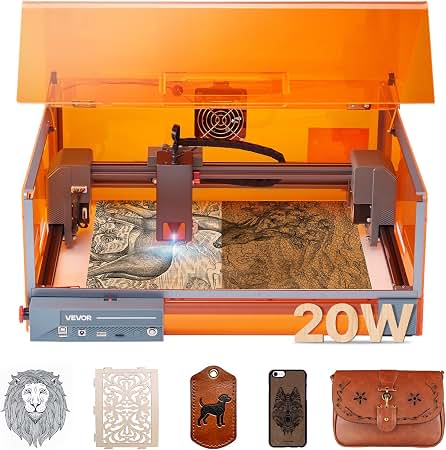
xTool D1 Laser Engraver with Rotary: A Guide to Engraving Cylindrical Objects
The xTool D1 is a diode laser engraver designed for projects such as marking wood, leather, coated metal, and other laser-compatible materials. Add a compatible rotary attachment, and the machine can engrave around cylindrical or rounded objects—including tumblers, glasses, and bottles—rather than only working on flat surfaces.
A rotary setup expands what the xTool D1 can do, but it also takes a little more preparation than a standard flat engraving job. Choosing the right rotary mode, positioning the object, and setting safe laser parameters are all important for consistent results.
What a Rotary Attachment Does
A rotary attachment turns an object as the laser engraves. The machine coordinates that rotation with the laser head’s movement, allowing a design to follow the surface of an item.
Depending on the attachment, objects may be held between rollers or secured with a chuck. Roller-style setups are often convenient for relatively straight-sided cups and tumblers. A chuck can provide a firmer hold for some objects, while specialized supports may help with rounded items. The appropriate setup depends on the object’s shape and the rotary accessory being used.
Compatibility and Setup
Before purchasing or connecting a rotary attachment, confirm that it is compatible with the exact xTool D1 model, controller, and software version. Compatibility can vary by accessory and setup. Check the manufacturer’s current instructions rather than assuming that every rotary device works with every D1 configuration.
In general, setup involves connecting the rotary accessory, placing the machine in rotary mode in the control software, and selecting the correct rotary type. The artwork may need to be prepared for a cylindrical surface, with its width and height matched to the intended engraving area. Follow the accessory’s manual for connection and calibration details.
Preparing an Item for Engraving
- Check the material. Use materials that are suitable for diode-laser engraving. Some metals require a coating or marking compound, and some plastics can release hazardous fumes when heated. Verify material safety before engraving.
- Measure the object. Note its circumference, diameter, and the area available for the design. Curved or tapered surfaces may need extra care.
- Secure and level the item. The object should be held firmly and positioned so its surface stays at a consistent distance from the laser.
- Test the alignment. Use the software’s framing or outline function, when available, to check that the design will land in the intended location before engraving.
- Run a small test. Material, finish, and curvature can affect the result. Test settings on a similar piece or an inconspicuous area first.
Popular Rotary Projects
With a suitable rotary setup, the xTool D1 can be used for personalized drinkware, engraved glassware, wooden cups, small bottles, and other compatible round objects. It can also be useful for decorative bands, names, logos, and repeating patterns.
Not every object is a good candidate. Items that are tapered, irregular, unusually heavy, or difficult to secure may rotate unevenly. The laser’s working area and the rotary attachment’s capacity also limit the size of projects. Check those specifications before starting.
Advantages and Considerations
A rotary attachment makes it possible to take on curved-surface projects without purchasing a dedicated cylindrical engraver. It can also make personalization work more versatile, especially for small batches of custom gifts or branded items.
There are trade-offs. Rotary engraving requires careful alignment, and even a small amount of slipping can distort a design. Curved surfaces can also make focus and placement more challenging. For best results, allow time for setup and testing rather than treating a rotary project exactly like a flat engraving job.
Safety Matters
The xTool D1 is an open-frame laser engraver, so appropriate laser-safety precautions are essential. Use the eye protection specified by the manufacturer, keep people and pets away from the work area, and never leave an operating laser unattended. Provide suitable ventilation or fume extraction, keep combustible materials away, and have an appropriate fire-safety plan. Do not engrave unknown materials, PVC, or other materials that may produce dangerous fumes.
Is an xTool D1 with a Rotary Right for You?
An xTool D1 paired with a compatible rotary attachment can be a practical option for makers who want to engrave both flat materials and selected cylindrical objects. It is especially appealing for hobby projects, personalized gifts, and small-scale customization. The best results come from confirming compatibility, securing the workpiece carefully, and following the machine and accessory instructions for software, materials, and safety.
xTool D1 Rotary Attachment FAQs: Compatibility, Setup, Tumblers, Materials, and Troubleshooting
- Is the xTool D1 compatible with a rotary attachment?
- How do you set up and use a rotary attachment with the xTool D1?
- Which rotary attachment works best with the xTool D1 for tumblers and glasses?
- What materials and objects can the xTool D1 engrave with a rotary attachment?
- Why is my design distorted or misaligned when rotary engraving with the xTool D1?
Is the xTool D1 compatible with a rotary attachment?
Yes, the xTool D1 can work with a compatible rotary attachment, allowing you to engrave cylindrical objects such as tumblers, glasses, and bottles. Compatibility and setup may depend on your D1 model, rotary accessory, and software version, so check the manufacturer’s current instructions before connecting it. You’ll also need to enable the correct rotary mode and secure and align the item carefully for an even engraving.
How do you set up and use a rotary attachment with the xTool D1?
To use a rotary attachment with the xTool D1, first confirm that it’s compatible with your D1 model and follow the accessory’s instructions to connect it, with the machine powered off if required. In the control software, select rotary mode and the correct attachment type, then secure and level the object so it turns smoothly. Set the artwork dimensions and laser focus, use the framing function to check placement, and run a small test before engraving. Follow the xTool safety guidance, including using appropriate eye protection, providing ventilation, and never leaving the laser unattended.
Which rotary attachment works best with the xTool D1 for tumblers and glasses?
For tumblers and glasses, the xTool RA2 Pro is a versatile choice for the xTool D1 because it includes both roller and chuck-style configurations. The rollers are often convenient for straight-sided tumblers, while the chuck can help hold some other shapes more securely. Before buying, confirm compatibility with your specific D1 model and setup, and check that the object’s size and shape work with the attachment.
What materials and objects can the xTool D1 engrave with a rotary attachment?
With a compatible rotary attachment, the xTool D1 can engrave suitable cylindrical or rounded objects made from materials such as wood, leather, glass, and coated or treated metal. Common projects include tumblers, cups, bottles, and other items that fit securely on the rotary and stay level as they turn. The exact materials and object sizes depend on the D1 model, laser module, and rotary accessory, so check their specifications and test settings before engraving. Avoid unknown materials and plastics that may release hazardous fumes, and follow the manufacturer’s safety guidance.
Why is my design distorted or misaligned when rotary engraving with the xTool D1?
A design may look distorted or misaligned when rotary engraving with the xTool D1 if the rotary mode or attachment type is set incorrectly, the object is slipping or sitting unevenly, or its dimensions are entered inaccurately. Confirm the correct rotary settings in the software, measure the object carefully, secure it so it turns smoothly, and make sure the engraving area is level and properly focused. Recheck the design’s position and run a framing preview or small test before engraving; even slight movement or incorrect sizing can shift or stretch the result.
No Responses